How to connect a terminal to 1C:Retail
No 1C programmer needed. The TSD Expert installer adds the extension, publishes the database on your local network and checks the connection. Then run the setup wizard in 1C, scan a QR code with the phone — and you’re ready.
In short
Windows 64-bit
The computer that runs 1C, with administrator rights.
1C 8.3.27+ with a web server
1C:Retail for Kazakhstan 2.2 or 2.3, 64-bit platform.
An extension, not a modification
The configuration stays standard — 1C updates keep working.
Rollback and resume
If a step fails, resume from there or roll back.
Installation step by step
- Download the TSD Expert installer and run it as administrator on the computer with 1C.
- Choose the 1C:Retail database and enter the 1C administrator login and password.
- Click «Начать» (Start): the installer adds the extension, an exchange user and web server publishing, and opens the port for the local network only.
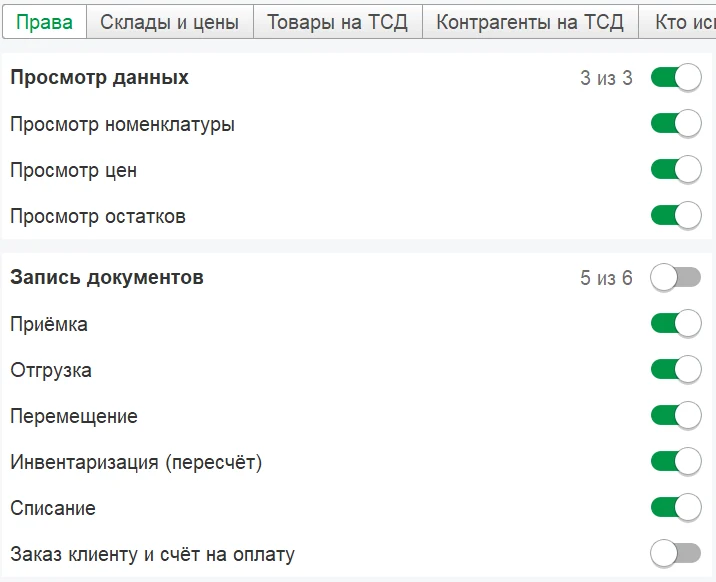
- Open 1C — the setup wizard guides you step by step: license, access profile, employees with PINs.
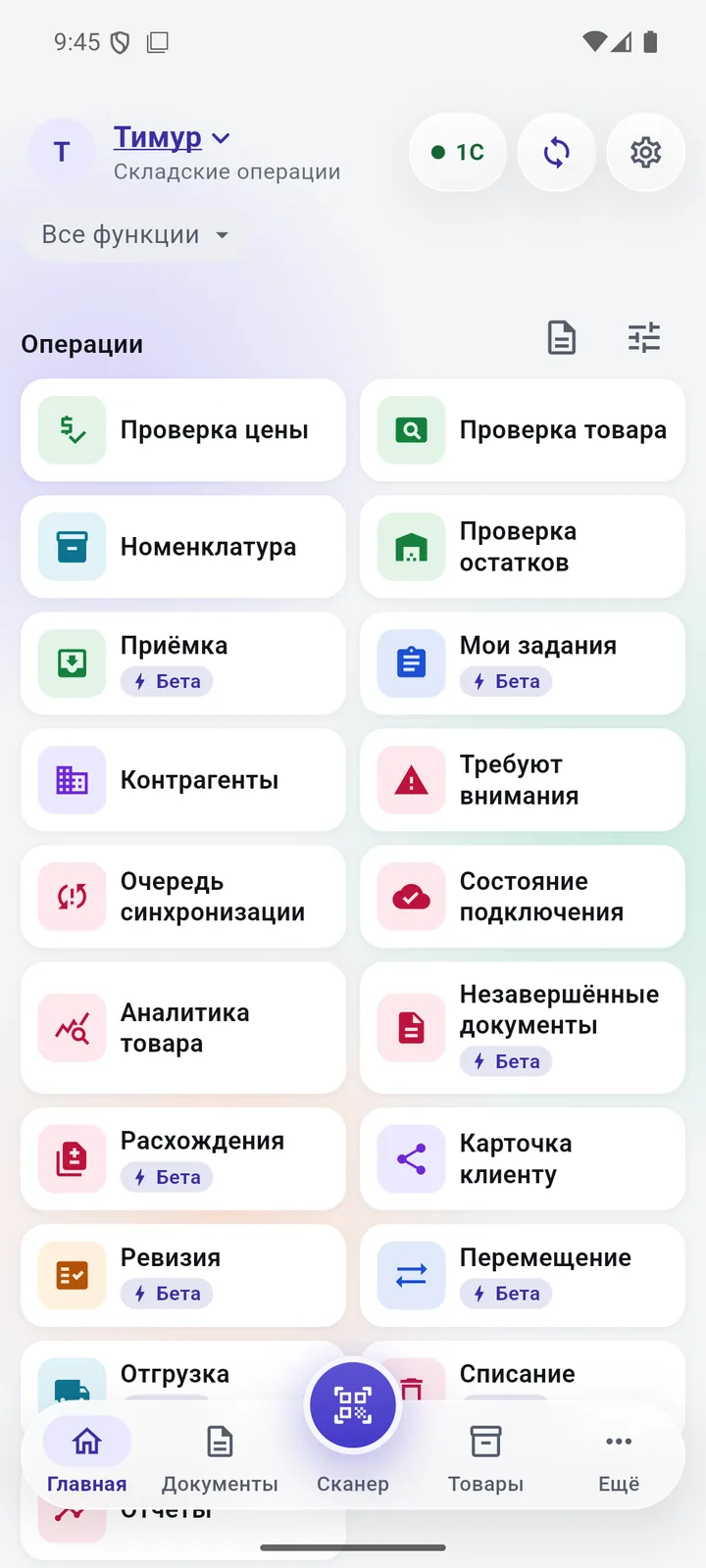
- In the wizard, open the phone connection step and scan the QR code in the app.
Questions
Do I need a 1C programmer?
No. The installer does everything; you only need the 1C administrator login and password.
What changes in our 1C?
The TSD Expert extension and an exchange user are added. The configuration stays standard.
What if the installation is interrupted?
The installer resumes from the failed step or rolls the changes back.
We’ll show it on your 1C
Leave your number — we’ll call you back, answer your questions and help with installation.
- +7 777 156 5103
- info@1s-expert.kz