Learn

Short step-by-step lessons — from installation to reports. Each takes a couple of minutes.

01

Installing in 1C

Installer: database, login, “Start”.

Step by step

  1. Download the TSD Expert installer for Windows.
  2. Run it as administrator on the computer where 1C is installed.
  3. Choose the 1C:Retail database and enter the 1C administrator login and password.
  4. Click «Начать» (Start): the installer sets up the extension, the web server and publishing on your local network.
  5. If something goes wrong, click «Продолжить» (Continue) to resume from the failed step, or roll back.
02

Setup wizard in 1C

License, profile, staff.

Step by step

  1. In 1C, open the TSD Expert section — the setup wizard starts.
  2. Enter the license key from your account.
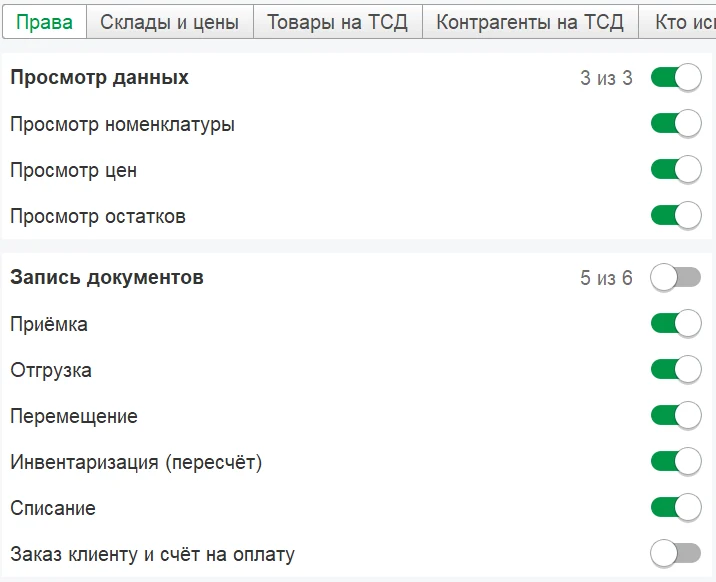
  3. Create an access profile: tick what staff are allowed to do, choose warehouses and price types.
  4. Add employees and give each one a 4–8-digit PIN.
Setup wizard in 1C
03

Connecting a phone

QR code from 1C and PIN sign-in.

Step by step

  1. Install TSD Expert on an Android phone or terminal.
  2. The phone must be on the same Wi-Fi network as the computer with 1C.
  3. In the 1C wizard, open the phone connection step — a QR code appears.
  4. Scan the QR code in the app and sign in with your PIN.
Connecting a phone
04

Scanner and Bluetooth

Camera, terminal or Bluetooth.

Step by step

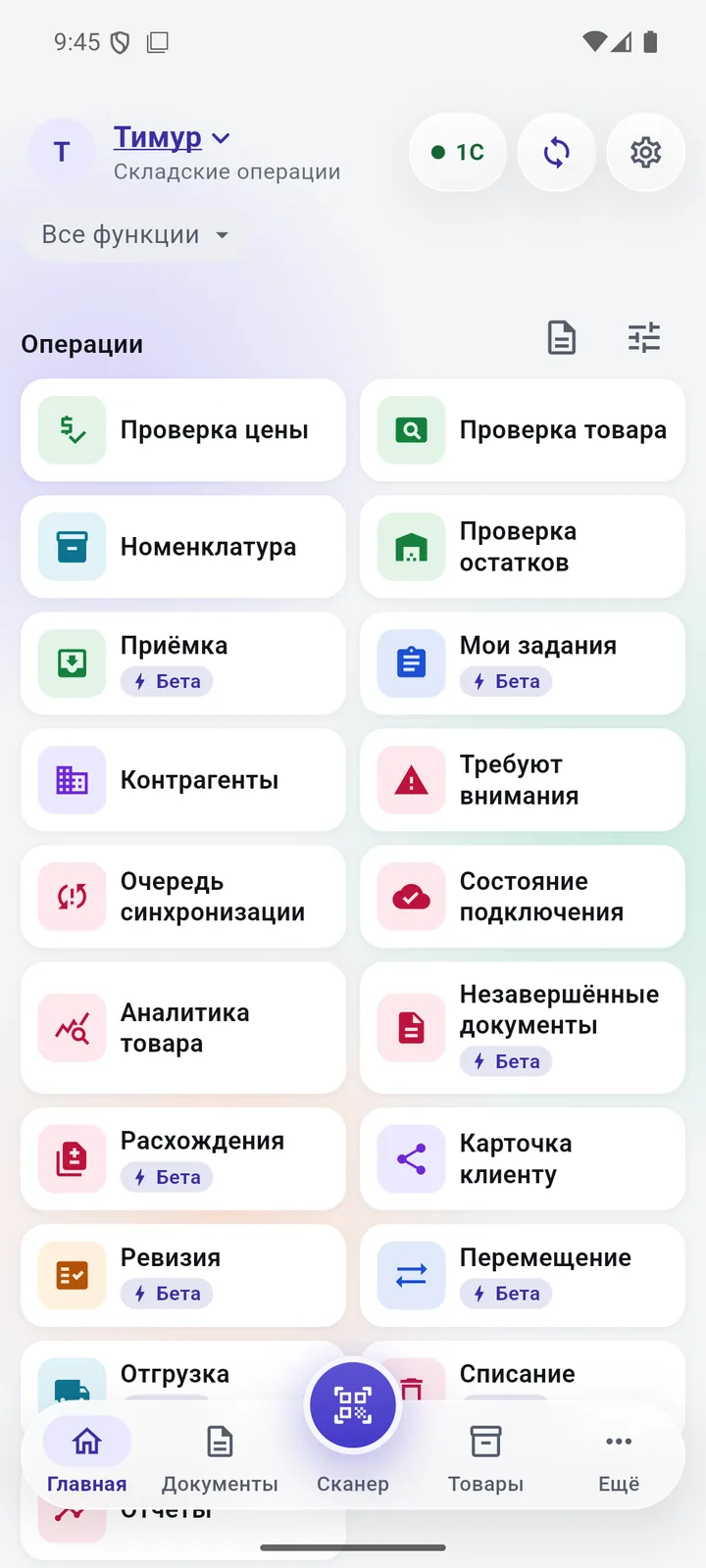
  1. The camera works right away: tap the «Сканер» (Scanner) button at the bottom.
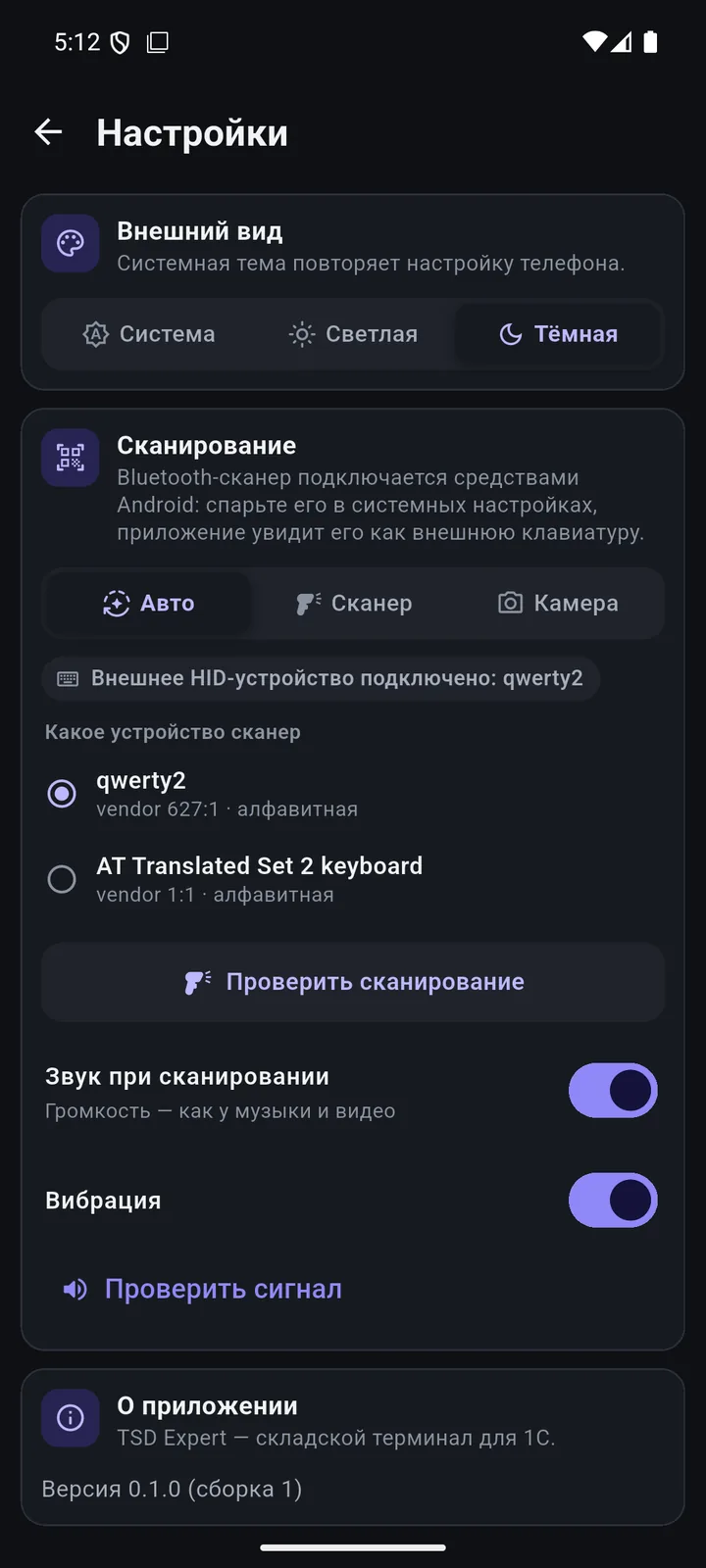
  2. For a Bluetooth scanner, pair it in Android settings first.
  3. In the app, open «Ещё» (More) → «Настройки» (Settings) → «Сканирование» (Scanning) and choose the device.
  4. Tap «Проверить сканирование» (Test scanning) and scan any barcode.
Scanner and Bluetooth
05

New product from the catalogue

The 5-step wizard.

Step by step

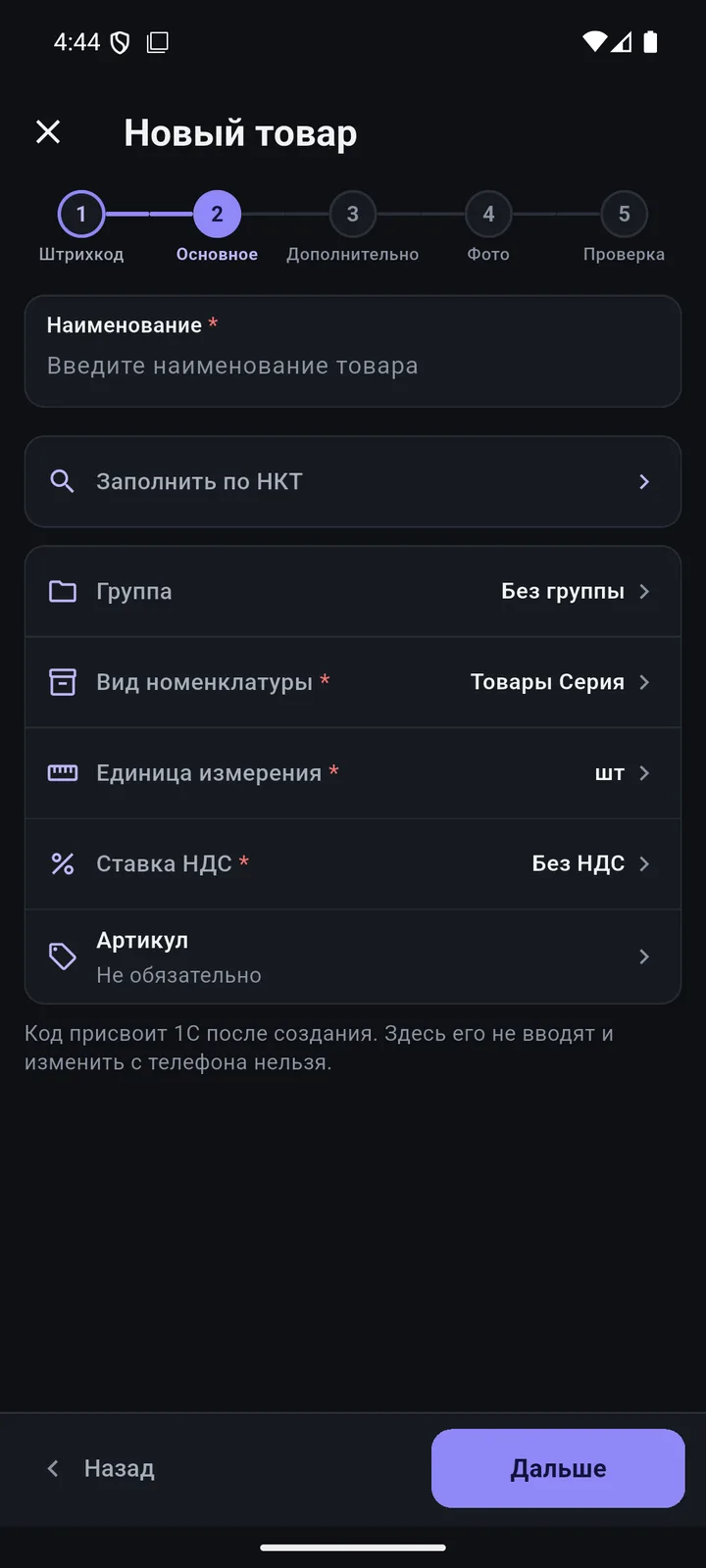
  1. Start the «Новый товар» (New product) wizard and scan the barcode.
  2. If the product already exists, the app opens its card.
  3. Tap «Заполнить по НКТ» (Fill from catalogue), choose a card and tick the fields you need.
  4. Check the group, type, unit and VAT, then add a photo.
  5. At the «Проверка» (Review) step, tap «Создать» (Create) — the product appears in 1C.
New product from the catalogue
06

Goods receipt and documents

From scan to 1C.

Step by step

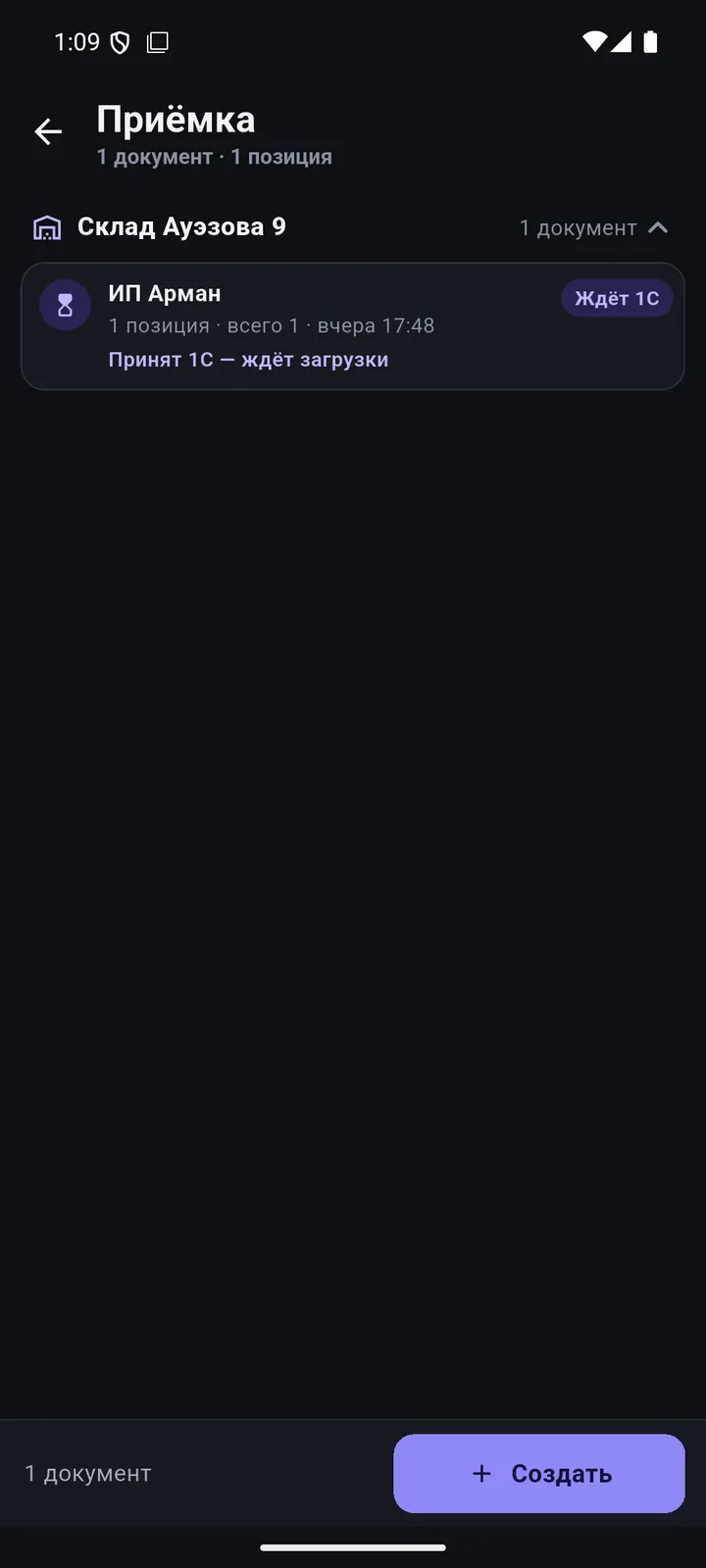
  1. Tap «Приёмка» (Receiving) — or «Документы» (Documents) → «Создать» (Create).
  2. Choose the warehouse and supplier.
  3. Scan products — the quantity goes up with each scan; “−/+” and manual entry are at hand.
  4. Tap «Далее» (Next), review, then tap «Отправить в 1С» (Send to 1C).
Goods receipt and documents
07

Documents in 1C

Load and post.

Step by step

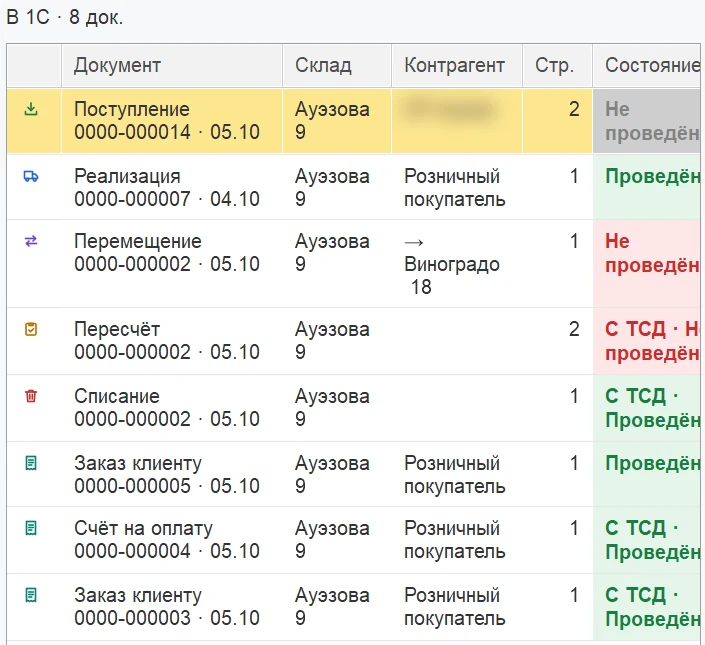
  1. In 1C, open «Документы ТСД» (TSD Documents).
  2. Select a document from the phone and click «Загрузить» (Load) or «Провести» (Post).
  3. If it wasn’t posted, the reason is in the log; fix it and click «Провести снова» (Post again).
  4. The «Сразу: создать и провести» (Create and post immediately) setting saves you from loading documents by hand.
Documents in 1C
08

Invoice and quote in PDF

From a customer order.

Step by step

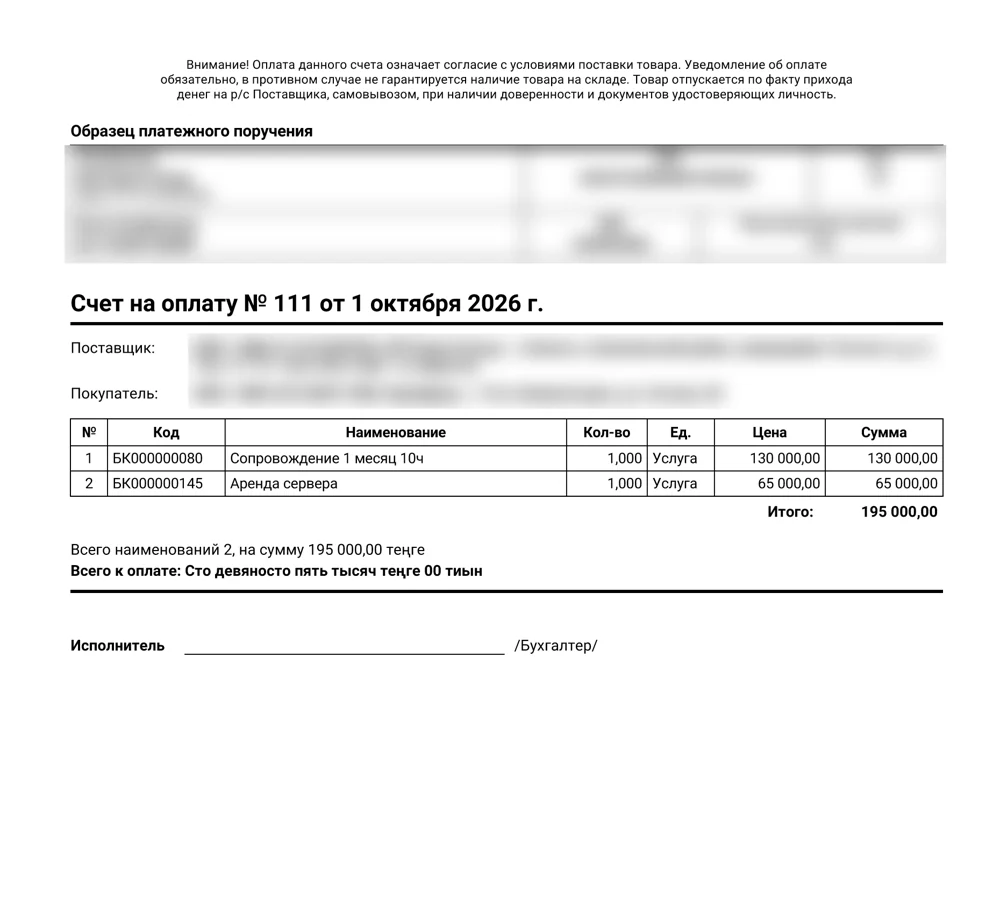
  1. Create a customer order and add products.
  2. Tap «Счёт на оплату» (Invoice) or «Комм. предложение» (Quote).
  3. Choose your company, bank account and price type; for a quote, choose with or without images.
  4. Tap «Поделиться» (Share) and send it to WhatsApp, Telegram or email.
Invoice and quote in PDF
09

Reports

Summary, sales, stock.

Step by step

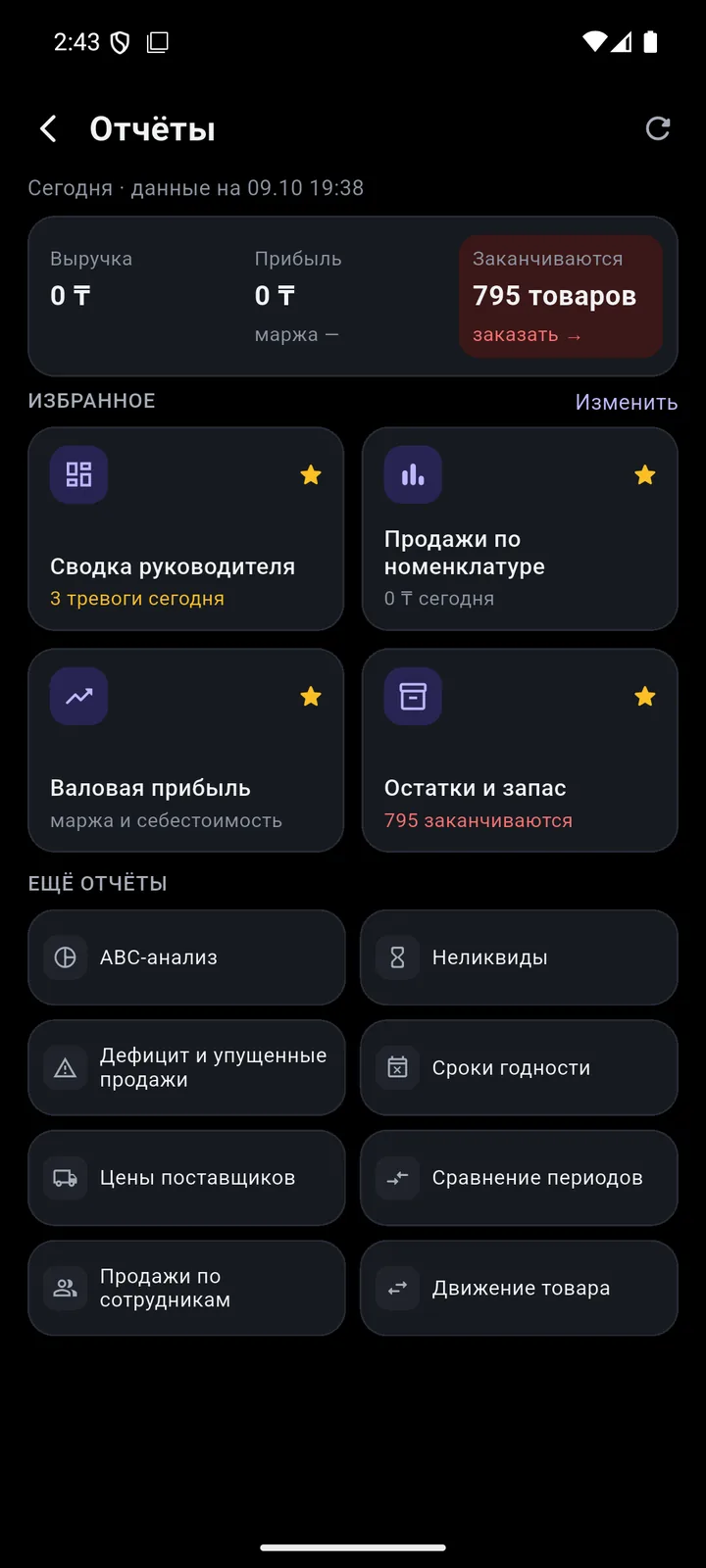
  1. Open «Ещё» (More) → «Руководителю» (For managers) → «Отчёты» (Reports).
  2. Choose a period and filters; add the reports you use most to favourites.
  3. In «Остатки и запас» (Stock and cover), select products and tap «Заказать» (Order).
  4. Export the report to PDF or Excel, or send it as text.
Reports
10

Working offline

The send queue.

Step by step

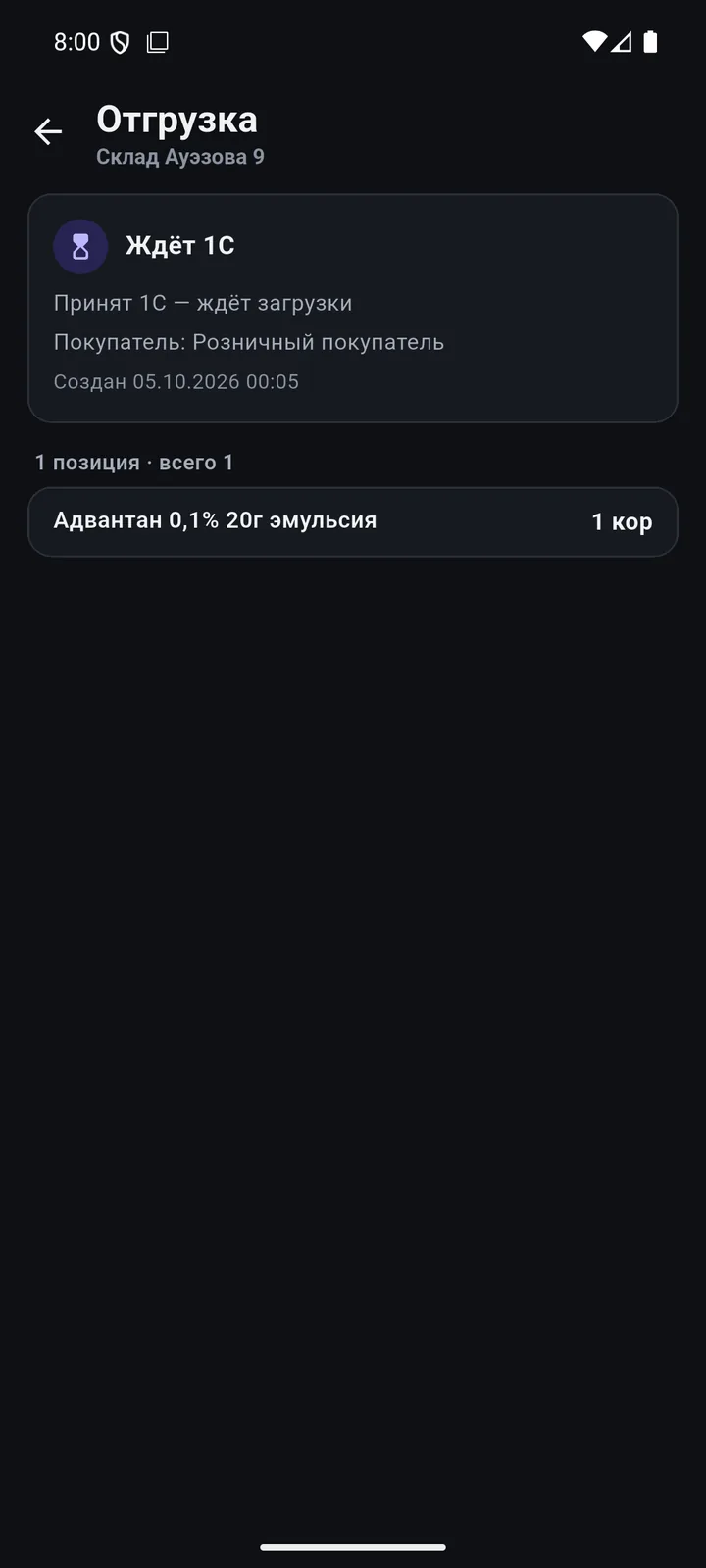
  1. Work as usual: documents get the “Waiting to send” status.
  2. When the network is back, everything goes to 1C on its own — exactly once.
  3. To check the queue, open «Ещё» (More) → «Очередь синхронизации» (Sync queue).
Working offline

We’ll show it on your 1C

Leave your number — we’ll call you back, answer your questions and help with installation.

  • +7 777 156 5103
  • info@1s-expert.kz
Partner programme for 1C franchisees and integrators